
Layers Pane#
Added in version 2.0: Layers are a new feature in version 2.0. In addition to customizing display options, they can be a useful way to organize complex systems. Some input generators can support layers for setting up QM / MM calculations, fragments, etc.
Layers allow you to configure the display and actions on different atoms, much like in graphical editing programs like Photoshop or Inkscape.
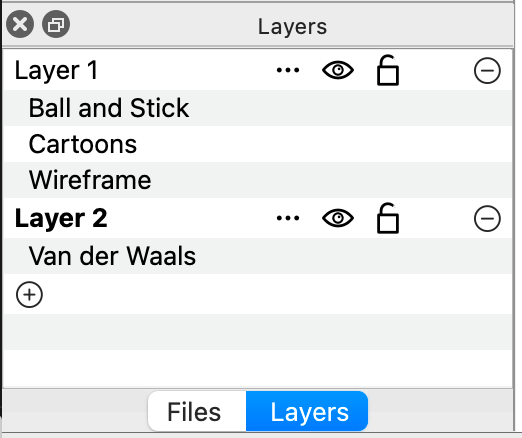
In this example with two layers, several atoms were selected, then Select ⇒ Create New Layer from Selection to move those atoms into a second layer.
Clicking on a particular layer, allows you to customize the display types and options for each layer independently.
Clicking on the eye icon allows you to hide or show all atoms in a layer
Clicking on the lock icon allows you to lock or unlock the atoms in that layer from editing or modification
Examples include:
Selecting water or other solvent molecules and moving them to a new layer to hide them or tune the display style to focus on the central molecule.
Selecting a metal atom in a protein or organometallic complex to display with a van der Waals sphere
Setting layers for a QM/QM or QM/MM multiscale calculation